
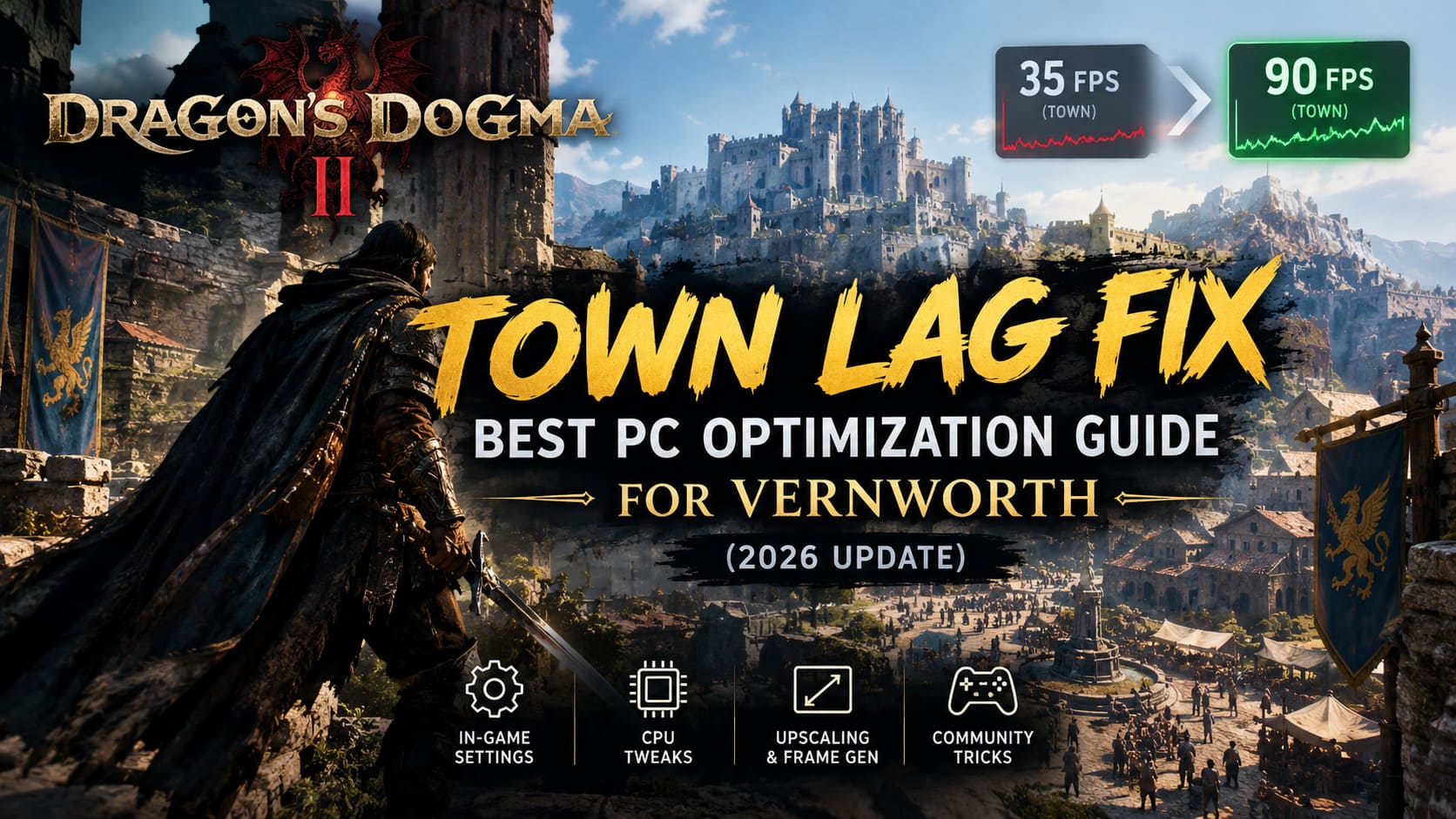
Dragon’s Dogma 2 Town Lag Fix: Best PC Optimization Guide for Vernworth (2026 Update)
You’re out in the wilds, sword in hand, game running at a buttery 90 FPS. A griffin swoops down, you stab it in the feathers, and everything feels perfect. Then you walk through the gates of Vernworth and the game turns into a slideshow. 90 becomes 35, the camera starts to judder, and you wonder if your PC has quietly died.
It hasn’t. I’ve sunk hundreds of hours into this game across multiple Arisen, and the capital has humbled every rig I’ve thrown at it. After a lot of tinkering, forum digging and testing, I’ve got a setup that makes the city playable again. Here’s all of it, no fluff.
Why Does the City Lag So Hard?
Everything in Dragon’s Dogma 2 is simulated. The baker has a schedule. The guard has a route. That random NPC arguing by the fountain has an inventory, physics and a little brain ticking away. Multiply that by the crowds in Vernworth and Bakbattahl and your CPU is sweating buckets.
That’s the part most people get wrong. Town lag is almost never a GPU problem. I’ve watched people drop from Ultra to Low and gain exactly zero frames in the capital, because the graphics card was sitting there twiddling its thumbs while the processor choked on NPC logic.
Capcom has shipped performance patches since launch, including Title Update 3.2 and the big 4.0 update, and they helped. But even on modern mid-range and high-end hardware, the city still needs a bit of manual love. Our plan is simple: cut everything that adds CPU work, then use the GPU’s spare muscle to cover the gap.
Step 1: In-Game Settings That Actually Matter in Town
Head to System > Options > Graphics. Some of these will look like downgrades. Trust me, the city will thank you.
| Setting | Recommended | Why It Matters |
|---|---|---|
| Rendering Mode | Progressive | Interlaced is a tiny speed bump, but hair and foliage shimmer like crazy |
| Ray Tracing | Off | Gorgeous in the wilds, a CPU tax collector in the city |
| Ambient Occlusion | SDFAO (SSAO or Off on weak builds) | Good look, reasonable cost |
| Shadow Quality | Medium | High shadows hammer draw calls in crowds |
| Shadow Cache | On | Stores shadow maps in VRAM so the CPU stops redoing them |
| Texture Quality | High (2 GB or 3 GB) | Match your VRAM, no CPU penalty |
| Mesh Quality | Mid or Low | Less geometry for the processor to chew on |
| Foliage Density | Low | Fewer trees and grass pushed through the pipeline |
A few personal notes on these:
- Ray Tracing Off is the single biggest quality-of-life change. My 1% lows in Vernworth jumped immediately. Yes, the reflections in puddles look lovely. No, they aren’t worth sliding around the marketplace at 30 FPS.
- Shadow Quality is the sneaky one. Dropping from High to Medium is barely visible mid-fight, but the city stability gain is huge.
- Textures are free real estate. If your card has the VRAM, crank them. Just don’t blow past your limit or you’ll trade lag for hitching.
Step 2: Upscaling and Frame Generation Are Your Best Friends
This is where things got fun for me. With the 2026 updates, Capcom finally gave the game a proper modern upscaling suite, and it fits the city problem perfectly. When the CPU is the wall you keep hitting, frame generation can paint extra frames on top without needing more processor work.

- DLSS Super Resolution / FSR 3: Set to Quality. At 1440p or 4K the image stays crisp and you get free performance.
- Frame Generation (DLSS / FSR 3): Turn it On. Update 4.0 added official FSR 3 Frame Generation and moved DLSS to version 4.5 with multi-frame generation. A CPU-bound 45 FPS in Vernworth can turn into a smooth 80+.
- Nvidia Reflex Low Latency: On + Boost. Because you’re CPU-limited in town, Boost keeps your processor clocked high, which tightens frame pacing and trims input lag.
One honest warning: frame generation works best when your base frame rate is already decent. If you’re stuck at 25 FPS before generation, it will feel floaty. Get the base up with the Step 1 settings first, then stack frame gen on top.
Step 3: Windows Tweaks That Are Worth Your Time
The game hammers the CPU, so how Windows treats it matters more than usual.
Power Plan
- Open Control Panel > Power Options.
- Pick High Performance or Ultimate Performance.
- Go to Change plan settings > Change advanced power settings.
- Set Processor power management minimum and maximum to 100%.
Laptop players, plug in. Battery mode in this game is pure suffering.
CPU Priority
This one’s a quick win for micro-stutter:
- Load your save while standing in a city.
- Press Ctrl + Shift + Esc for Task Manager.
- Open the Details tab and find DD2.exe.
- Right-click, Set Priority > High.
Never pick Realtime. It can starve your mouse and keyboard drivers, and then you’re hunting for a reboot while a pawn yells about a griffin you can no longer fight. The setting also resets when you close the game, so you’ll redo it each session.
Nvidia Shader Cache
If the game hitches every time you turn a corner, your system may be compiling shaders on the fly. Fix it:
- Right-click desktop and open Nvidia Control Panel.
- Go to Manage 3D Settings.
- Find Shader Cache Size.
- Change it from Driver Default to Unlimited or 10 GB.
- Hit Apply.
Now the driver has room to keep precompiled shaders instead of throwing them away and rebuilding them mid-stroll.
Step 4: The Community Tricks I Won’t Play Without
Applied everything above and still want more? These are the tweaks the community swears by, and I’ve tested both.
Recompile Your Shaders
After big patches, shader files can end up stale or mismatched, and the result is weird, unstable frame rates. A clean rebuild fixes it:
- Close the game completely.
- Open your install folder (usually
Steam\steamapps\common\Dragons Dogma 2). - Delete the file named shader.cache2.
- Launch the game and let the Compiling Shaders bar finish.
Don’t skip the wait. Loading your save halfway through compilation defeats the whole purpose. Grab a snack, pet a cat, come back.
Cap Your Frame Rate With RTSS
The built-in limiter in Dragon’s Dogma 2 has a reputation for erratic frame times. Plenty of players, me included, find an external cap far smoother.
- Install MSI Afterburner (it bundles RivaTuner Statistics Server).
- Open RTSS and add a profile for DD2.exe.
- Set the Framerate limit to something your PC can hold in the city, like 30, 45 or 60.
Here’s the thing a lot of people miss: a locked 45 feels better than a 45-to-70 roller coaster. Even frame delivery beats a high but jumpy number every single time. Pick a cap you can sustain in Vernworth’s worst moment, not its best.
Expected Results: What I Saw
Your numbers will vary based on CPU, RAM speed and resolution, but this is roughly what a tuned setup looked like for me in the busiest part of Vernworth:
| Setup | Typical City FPS | Feel |
|---|---|---|
| Stock Ultra, Ray Tracing On | 30 to 40 | Stuttery, camera judders |
| Step 1 settings only | 45 to 55 | Playable, still some dips |
| Step 1 + Windows tweaks | 50 to 60 | Noticeably steadier |
| Everything + Frame Gen + RTSS cap | 70 to 85 | Smooth and responsive |
My Honest Take
Let me be straight about this. A game this ambitious shouldn’t need a weekend of tinkering to walk through its own capital. Capcom’s patches have genuinely improved things, and I give them credit for finally adding proper frame generation support. But the underlying design, a living city where every NPC runs full logic at once, means Vernworth will always be the heaviest zone in the game.
And honestly? I forgive it. There’s nothing like stumbling into a stranger’s quest, watching a pawn drag a drunk NPC off a cliff, or getting chased through an alley by a chimera that decided to ruin a quiet evening. The chaos is the point. A little town lag is the price of that magic, and with these tweaks the price drops to something I’ll happily pay.
Quick Checklist Before You Go
- Ray Tracing Off, Shadows on Medium, Foliage on Low
- DLSS or FSR on Quality, Frame Generation On
- Reflex On + Boost if you’re on Nvidia
- High Performance power plan, DD2.exe on High priority
- Shader Cache set to Unlimited, old shader.cache2 deleted
- RTSS cap set to a number you can actually hold in town
Do those and Vernworth stops being the boss fight nobody asked for. Now get back out there, Arisen. The griffin’s waiting, and so is that pawn who still hasn’t learned not to stand in the fire.


