Active Matter Migration Guide: How to Link Gaijin Account to Steam and Keep Your Progress Before November Deadline
Active Matter finally hit Steam, Xbox Series X|S, and PlayStation 5 on September 15, 2026, and the extraction shooter crowd is loving it. Matter Team built a gritty, gun-nerd-approved shooter on top of a creepy multiverse that borrows heavily from SCP Foundation vibes. Gaijin Entertainment is publishing, and honestly, it’s the kind of weird, tense, loot-or-die experience the genre needed.
But there’s homework attached, and it’s the boring kind that bites you later.
If you bought into the game early through the standalone Gaijin Store launcher, you’re owed a free Steam copy. You also have a ticking clock. Miss it, and you’ll be paying full price on Steam for a game you already own. That would sting.
I went through the whole process, and here’s everything you need to know, plus the traps that will wreck your save if you click the wrong button.
How to Fix Gears of War: E-Day Xbox Game Pass Access and Connection Timed Out Errors
The Deadline You Cannot Ignore
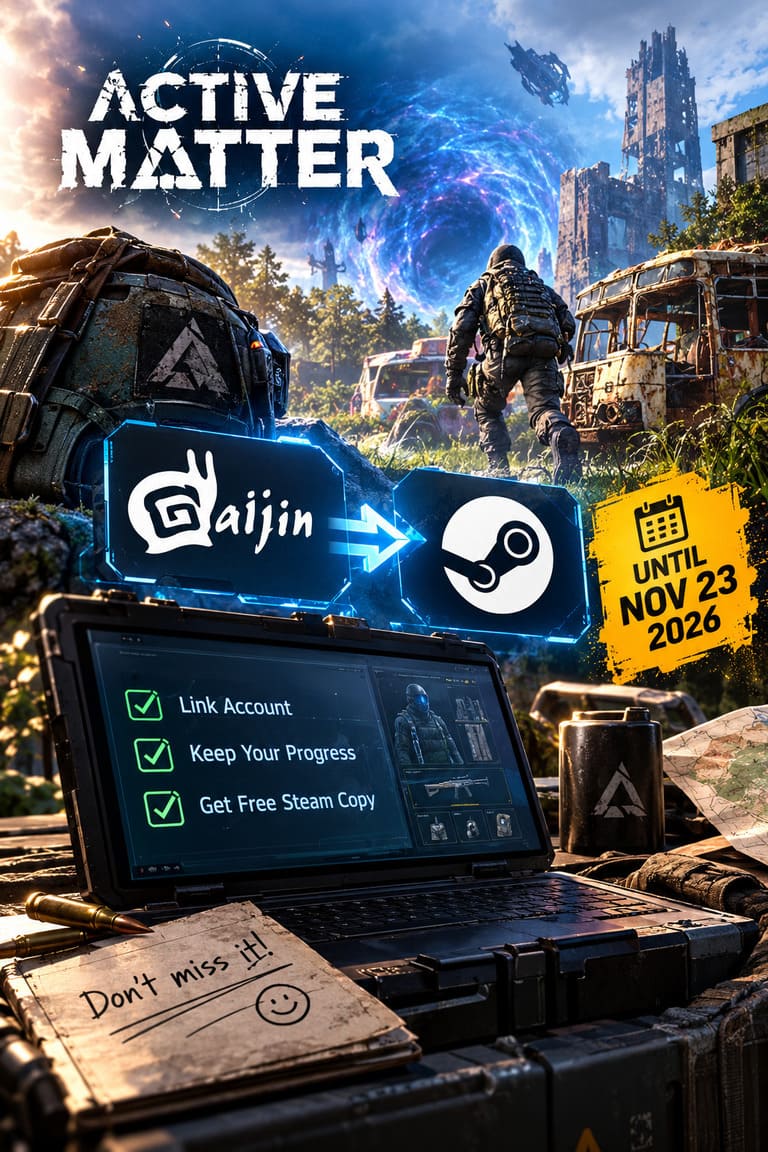
Gaijin gave everyone a 90-day window starting at the September 15, 2026 launch. The cutoff is November 23, 2026.
Here’s what happens if you blow it:
- You lose the free Steam entitlement for good.
- Your old profile stays safe on Gaijin’s servers inside the Gaijin.Net client, so nothing gets deleted.
- You can no longer bridge that account to Steam for free, so playing through Steam means buying the game outright.
Nothing is wiped, but the free ride is gone. Set a reminder on your phone right now. Seriously, do it before you finish reading.
What Edition Do You Get on Steam?
Gaijin runs a strict one-to-one policy. Whatever tier you grabbed in the Gaijin Store is what lands in your Steam library.
| Gaijin Store Edition | What You Get on Steam |
|---|---|
| Advanced Edition | The matching mid-tier Steam release |
| Premium Edition | The corresponding comprehensive pack |
| Elite Squad Edition | The premium Steam version, plus all developer-assigned deployment bonuses |
The Friend Key Catch
This is where Elite Squad owners might get grumpy. Your own account transfers cleanly, but the extra friend keys bundled with the pack do not spawn bonus Steam licenses. Any buddy who redeemed one of your early-access keys on their own Gaijin account can claim only a Standard Edition license on Steam.
Also, once you’re linked, future upgrades and DLC have to go through the Steam Store. The old Gaijin shop is done for that account. Plan your wallet accordingly.
Before You Touch Anything: Three Rules
Skip these and you can end up with a locked, duplicated, or overwritten profile. I’d call this the most important section of the whole guide.
- Use a clean Steam account. Your target Steam account must never have launched Active Matter. If you installed it on Steam and logged in with just your Steam credentials, the game quietly generated a fresh profile glued to that Steam ID forever. That profile blocks your import.
- Accept that demo progress gets overwritten. Did you mess around in the Steam demo or playtest? That data gets replaced by your Gaijin launcher save during the import. Fine for most people, but know it going in.
- Turn on the Steam Overlay. The final authentication windows rely on browser hooks inside the overlay. If it’s off in your global Steam settings, the process can stall at the worst moment.
The Full Migration, Step by Step
Don’t improvise here. Follow this order exactly.
Step 1: Start at the official claim page, not Steam. Do NOT just download the game and hope for the best. Head to the official Active Matter website and open the dedicated Steam Edition Claim Page. Log in with the exact Gaijin Network credentials (email and password, or your two-factor method) that own your Early Version license.
Step 2: Claim the free license. The system checks your purchase tier. Once it validates, hit ‘Claim Steam Edition.’ That kicks off a handshake with Valve, and you’ll log into your destination Steam account through a secure portal. Confirm the link and the license drops into your Steam library.
Step 3: Install and launch through Steam. Open the desktop Steam client, find Active Matter in your Library, install it, and boot it up. When the title screen loads, click ‘Login.’
Step 4: Find the Import button. Here’s the trap. Do not click ‘Sign in with Steam ID.’ That option spawns a blank account and turns your migration into a headache. Look for the dedicated ‘Import’ button instead and click it to open the account integration overlay.
Step 5: Enter your legacy credentials. In the import window, type the master email and password of your primary Gaijin account, then confirm the synchronization. The game reads your character stats, stash, and shell allocations and applies them to your Steam session instantly.
That’s it. Ten minutes, tops, if nothing goes sideways.
What Actually Carries Over?
Active Matter runs cross-progression on PC between Gaijin.Net and Steam. After a successful link, your stuff is unified across both launchers.
| Category | What Transfers |
|---|---|
| Wallet | All Credits and premium Prime currency |
| Character Shells | Tactical bodies like the Reaper and Knight, plus camos such as Rust |
| Safehouse & Shelters | Storage expansions, replicator queue upgrades, unlocked crafting blueprints (Robot Dog and Assault Quad Bike recipes included) |
| Raid Records & Merits | Combat progression, faction reputation, level history |
Losing a Knight shell or a pile of Prime currency would be brutal, so it’s a relief that everything mirrors cleanly. The Robot Dog and Quad Bike blueprints coming along for the ride is a nice touch too. Nobody wants to regrind those.
When Things Break: Troubleshooting the Three Big Problems
1. ‘Database Already Contains Your Steam ID’
This error pops up when your Steam ID was already tied to another Gaijin title, think War Thunder, Crossout, or Star Conflict. If you’ve got an old Gaijin profile from years back attached to that Steam account, the system won’t let you create a new link.
The fix: Use the older, original Gaijin credentials associated with that Steam account on the Active Matter import screen, or contact customer support.
2. You Accidentally Clicked ‘Sign in with Steam ID’
Yeah, it happens. One misclick and the game builds an empty level-one profile on your Steam ID.
The fix:
- Stop playing on that character immediately.
- Submit an official account unlinking request through the Gaijin Support Portal, with your public Steam ID or direct profile link.
- Wait for review. Agents handle these case by case, and unlinking can wipe whatever you earned during that short Steam session.
Don’t panic and don’t keep grinding on the wrong profile. Every minute you play there is data you may lose.
3. Email Conflicts
You can’t link a Steam account to a Gaijin email address that’s already registered to a separate, conflicting Gaijin profile. Keep a clean 1:1 relationship between your main gaming email and the platform IDs you’re targeting. If you’ve got three old Gaijin accounts floating around under different addresses, sort that out first.

My Take: Is the Hassle Worth It?
Look, nobody enjoys admin work in their gaming time. But Gaijin’s setup is actually fairly generous. A free Steam copy, full progression transfer, wallet balances intact, and a 90-day window that gives you plenty of runway. Plenty of publishers would have just told early supporters to buy it again.
The weak spot is the friend key situation. Elite Squad buyers who shared keys get a raw deal compared to their own treatment, since their buddies only get Standard Edition. Understandable from a business angle, still a bit of a bummer.
The bigger danger is user error. That ‘Sign in with Steam ID’ button sitting right there is a trap for anyone rushing through. Slow down, read each screen, and use Import.
Quick Checklist Before You Start
- Confirm your Steam account has never launched Active Matter
- Turn on the Steam Overlay
- Have your Gaijin email, password, and 2FA ready
- Make sure that email isn’t tied to another Gaijin profile
- Block out about ten minutes
- Finish well before November 23, 2026
Final Thoughts
Active Matter’s arrival on Steam is a big moment for the game and its growing community, and the migration is your ticket to jumping in without losing a single shell, stash, or blueprint. Do the claim page first, hit Import instead of the Steam ID login, and keep your credentials handy. Get it done before the deadline and you’ll be back in the anomaly zones with your gear, credits, and recipes right where you left them.
See you in the extraction zone, operator.